Dollar Donation Club is a charitable giving platform. Shoppers can donate a portion of their order total to a selected charity, if a merchant is using the Impact API.
When using the Dollar Donation Club Impact API, the donation total is calculated by calling one of Dollar Donation Club’s Impact API servers to get the total impact based on the order total and the merchant’s configured donation percentage.
| Availability |
|---|
| Magento Commerce 2 / Adobe Commerce, WooCommerce, Shopify, Digital Goods and Subscriptions, BigCommerce, Custom Cart / Direct API, SFCC V2 |
Set Up Dollar Donation Club Integration
Step 1: Obtain the Impact API Key
- Log into the Dollar Donation Club Impact API dashboard and navigate to the API Keys page.
- Click Create, fill the form and copy the value of the Key field.
Step 2: Enable Checkout Donations and add the Impact API Key to Bolt
-
Log in to the Bolt Merchant Dashboard:
- Sandbox: https://merchant-sandbox.bolt.com
- Production: https://merchant.bolt.com
-
Navigate to Commerce > Checkout > Configuration.
-
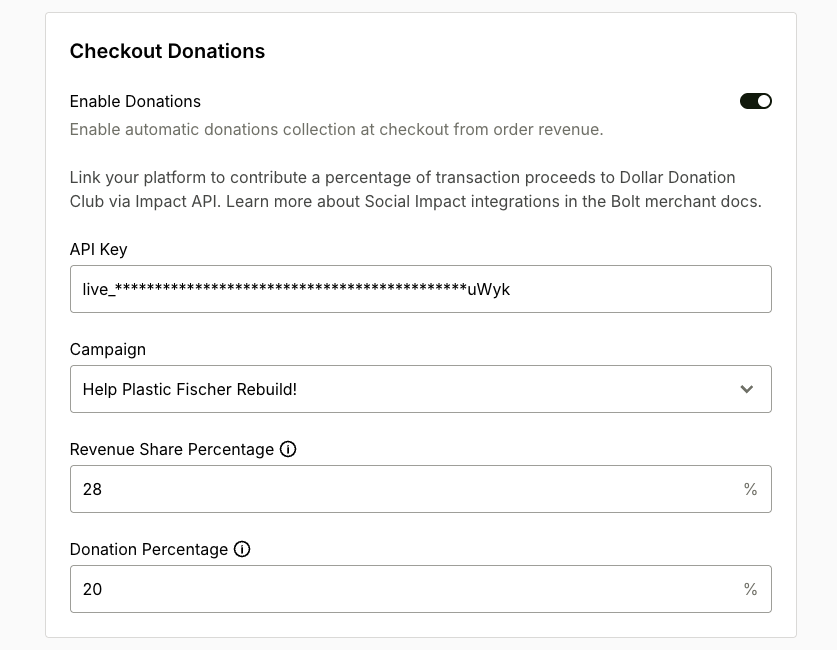
Find the Checkout Donations section and toggle Enable Donations to Enabled.
-
A form appears where you can enter the Impact API Key.
-
Select Campaign that you want to use for your donations.
-
Provide a Revenue Share Percentage that you want to use as base to calculate donation and Donation Percentage that you want to use for your donations.
- Revenue Share Percentage is the percentage of the order total that will be shared with the campaign. If applied discounts will exceed amount calculated with this percentage, the donation won’t be added to the order.
- Donation Percentage is the percentage of the calculated revenue that will be donated to the campaign.
- Example:
- Revenue Share Percentage: 28%
- Donation Percentage: 20%
- Order Total: $100
- Donation Amount: $100 x 28% x 20% = $5.6
-
Click Save.
TIP
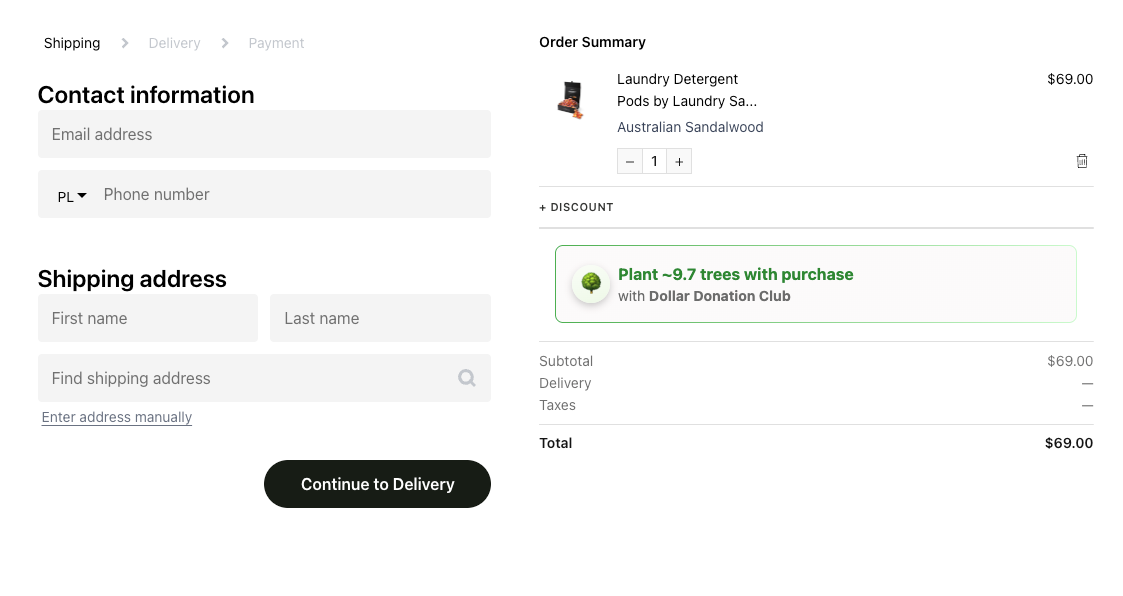
Shoppers can now see dynamically calculated donation amounts in the Order Summary.
Step 3: (Optional) Configure the Impact API Metrics Widget
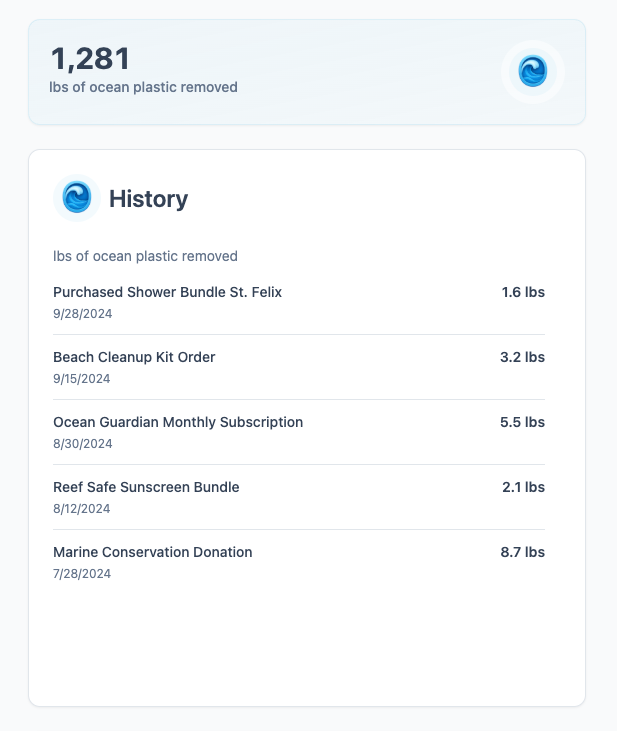
Optionally, you can display the Impact API Metrics Widget on your store’s user dashboard. This widget shows shoppers the impact of their donations based on their previous orders.
- Log in to the Bolt Merchant Dashboard.
- In the left navigation, click Administration > API and copy the Publishable Key value. You need this value for further setup.
- Paste the following snippet within the
<head>tag:<script defer id="bolt-account" type="text/javascript" src="{{bolt-script-url}}" data-publishable-key="{{YOUR_PUBLISHABLE_KEY}}" ></script> - Replace these placeholders with the appropriate values:
{{YOUR_PUBLISHABLE_KEY}}: Add your publishable key for the appropriate environment{{bolt-script-url}}:- Sandbox:
https://connect-sandbox.bolt.com/account.js - Production:
https://connect.bolt.com/account.js
- Sandbox:
- Paste the following snippet where you want the widget to be displayed:
<div class="bolt-donations-embedded"></div>
TIP
Shoppers can now view their donation history on the dashboard of their account in your store.