
The instructions below will walk you through the process and explain how to fill in the required information in Shopify and your Bolt Merchant Dashboard.
Before You Start
This guide assumes you have already signed up for Checkout Everywhere, Bolt Checkout, or Bolt Connect using Bolt onboarding form. If you have not, create your Bolt account to get started.
TIP
See more information about creating a merchant account with Bolt.
Step 1: Create App in Shopify
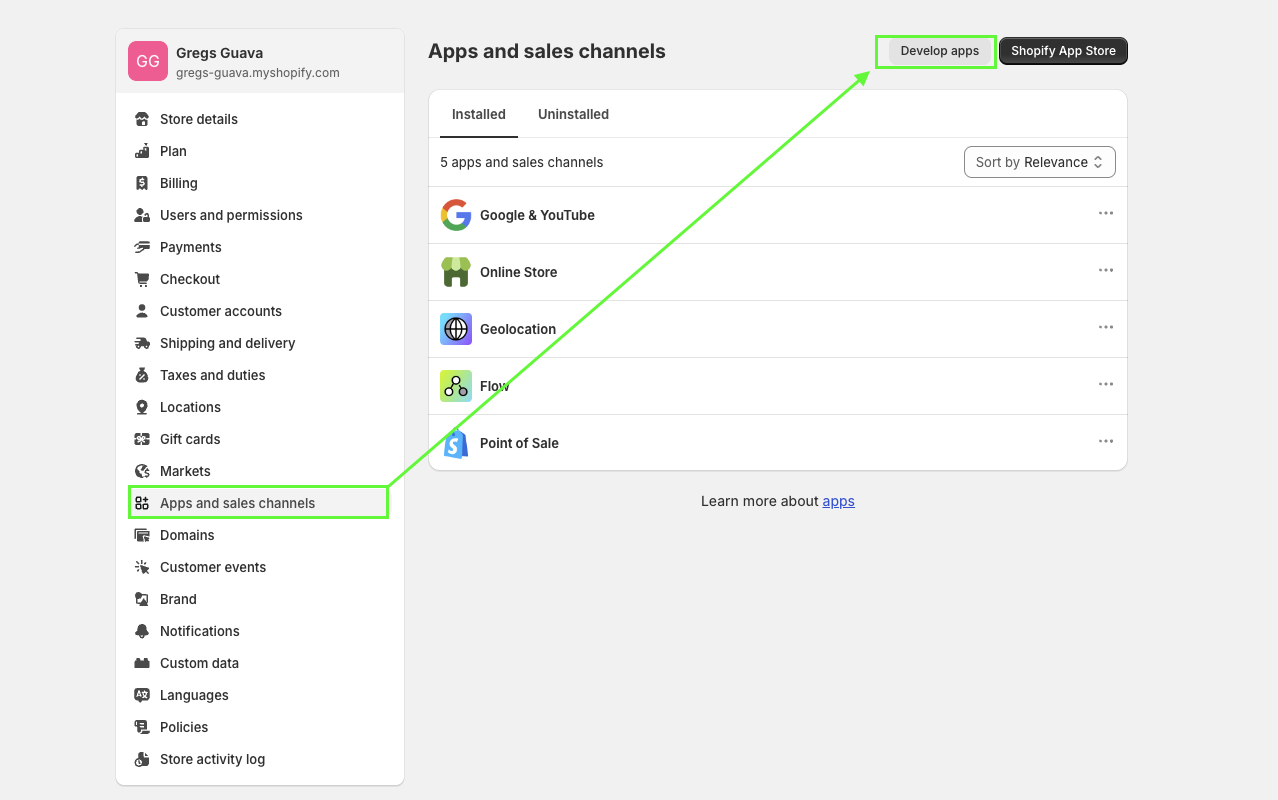
- Go to Apps in Shopify.
- Click on Develop apps.
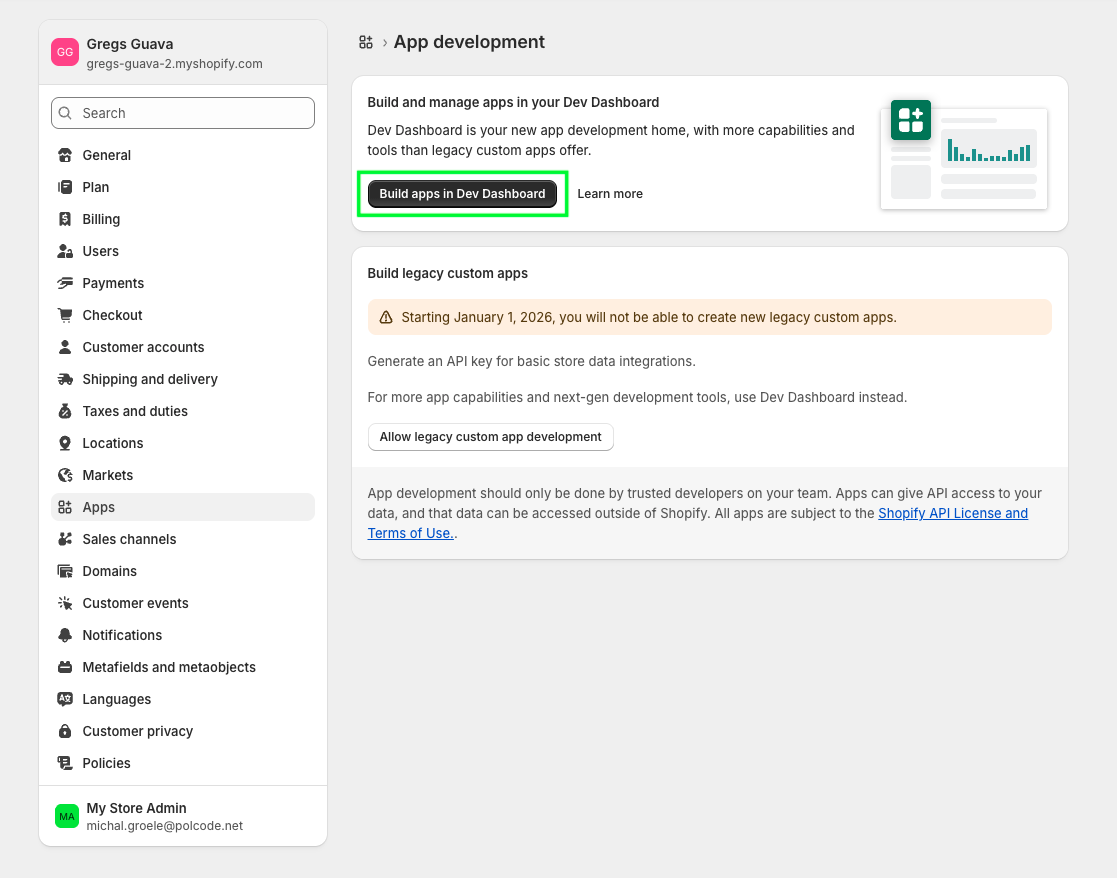
- Click on Build apps in Dev Dashboard.
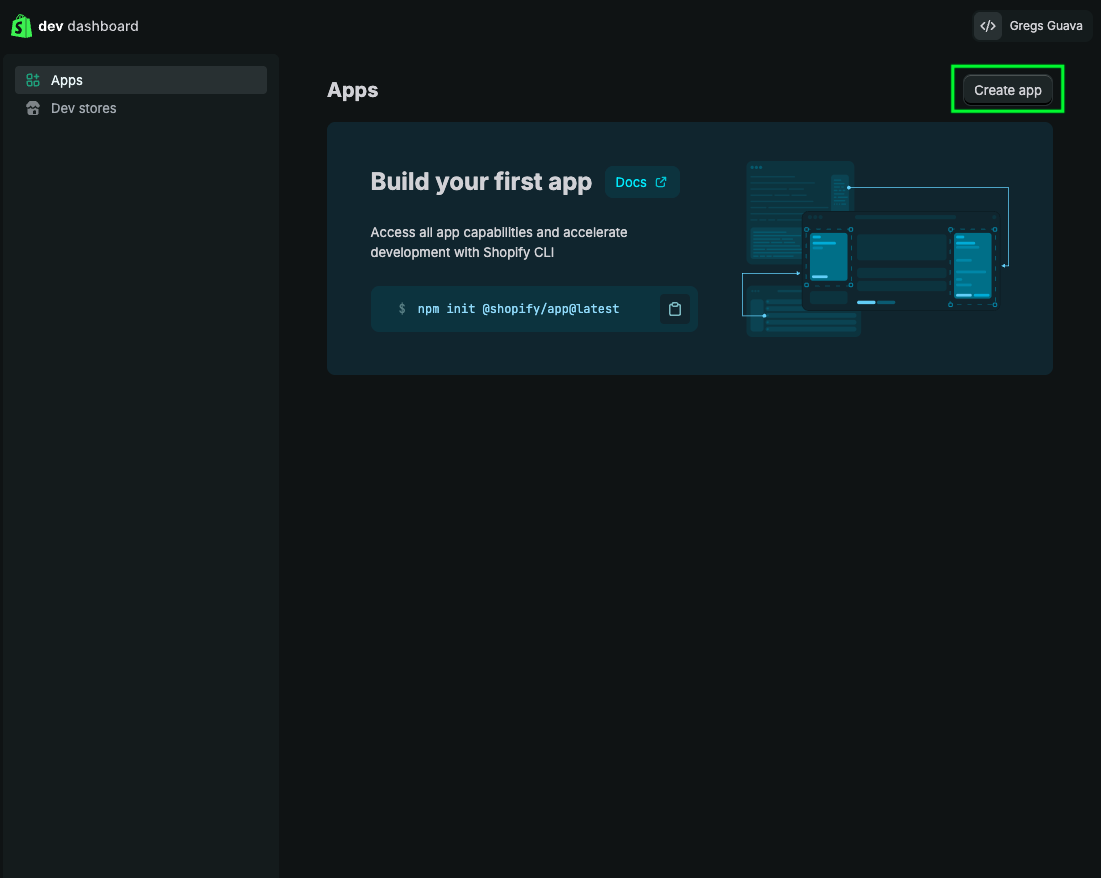
- You will be redirected to the Shopify Developer Dashboard. Click on Create app.
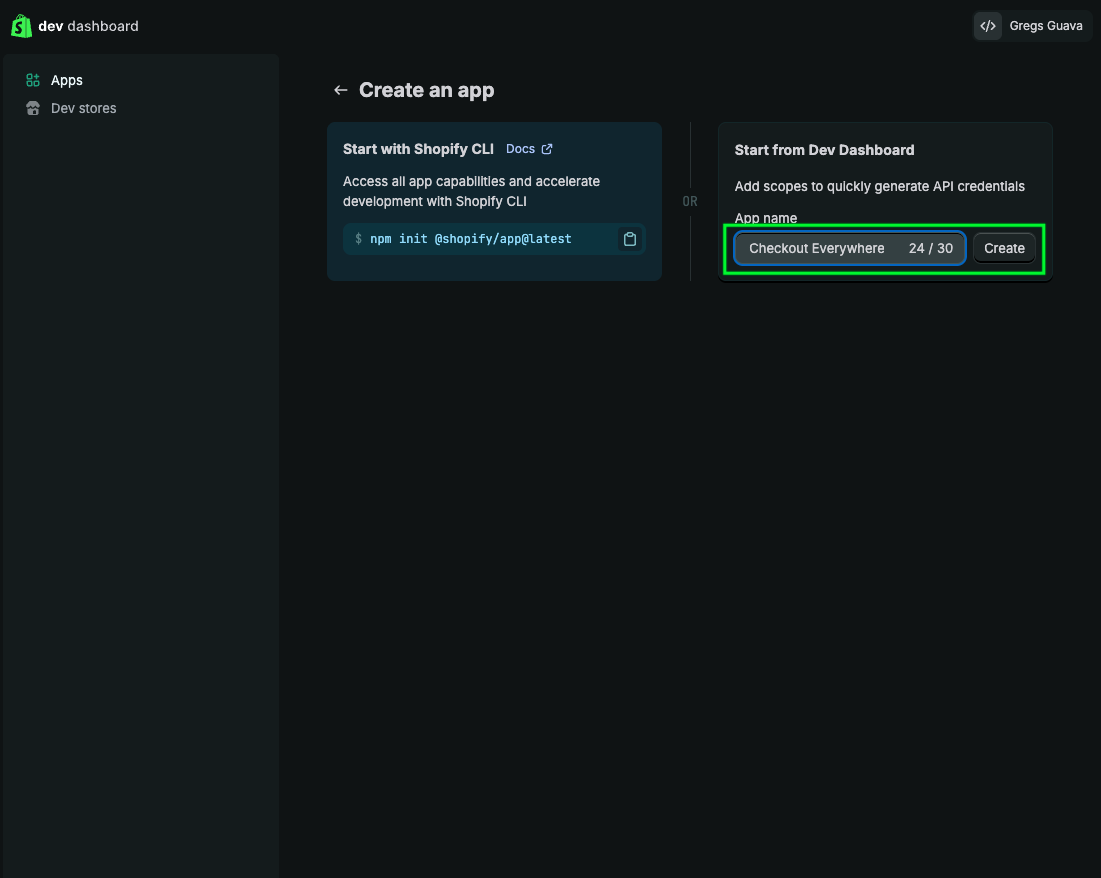
- Fill App name and click on Create
- Open Versions tab in the app you just created and scroll down to Access.
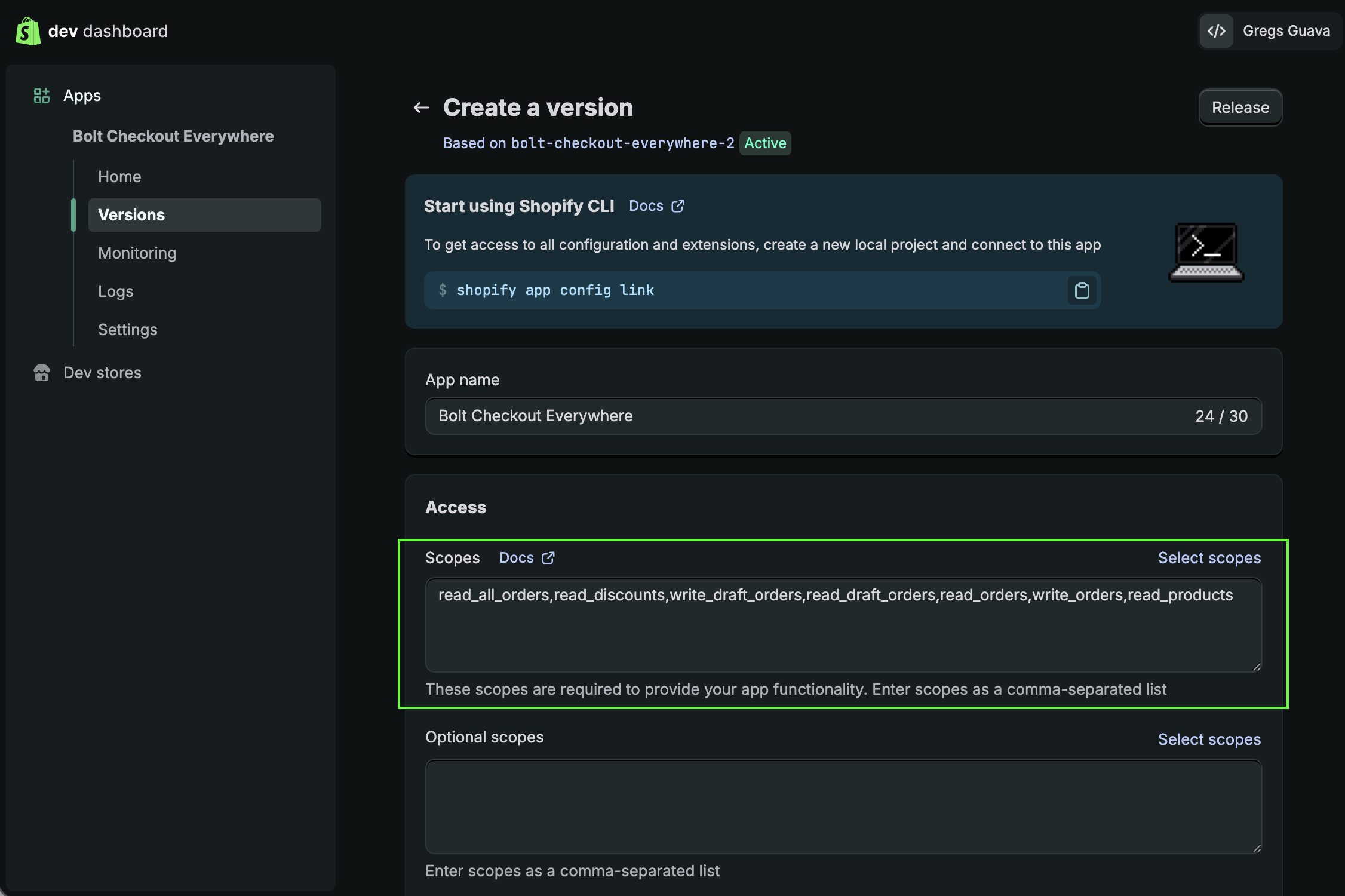
- From all scopes search for Draft Orders, Orders, Products, and Discounts and give access as in the image below:
- Read and write access for draft orders
- Read and write access for orders
- Read access for products
- Read access for discounts
- Read access for all orders (if you are a Shopify Partner, you may need to click Request access and fill out the request form)
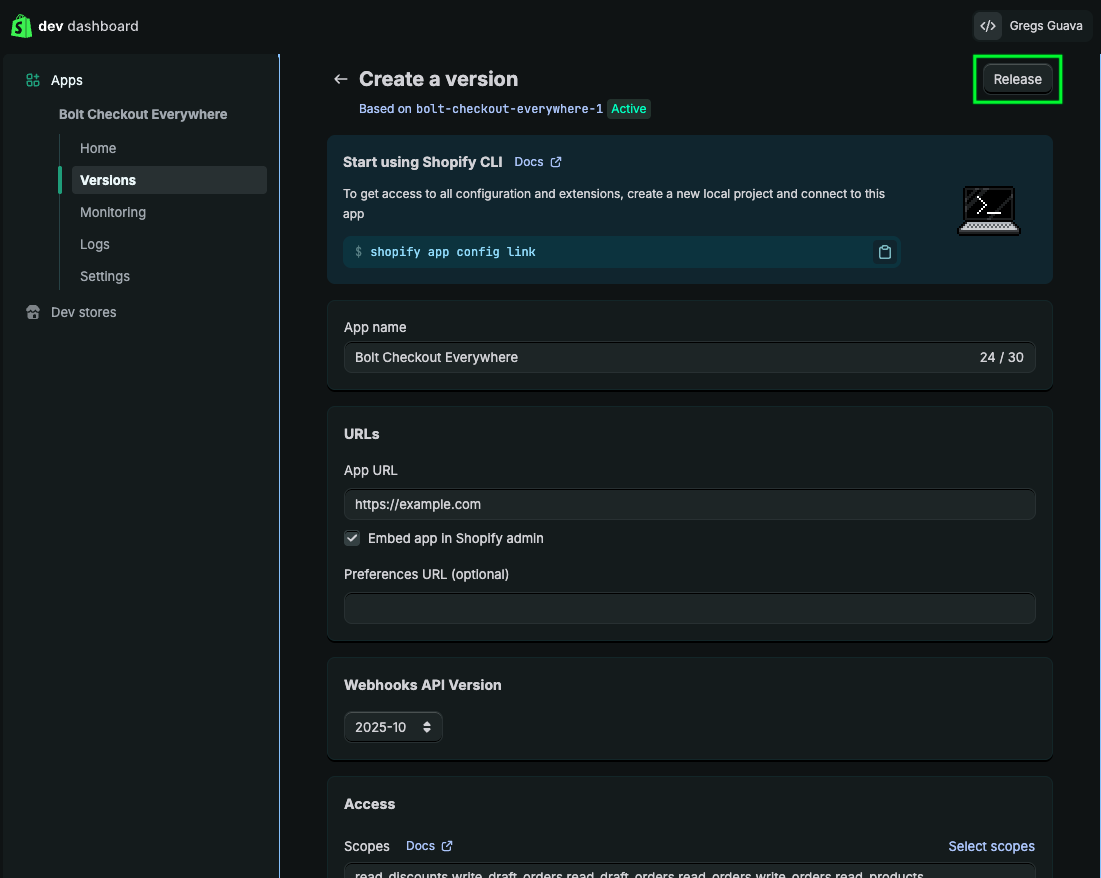
- Click Release on the top right corner.
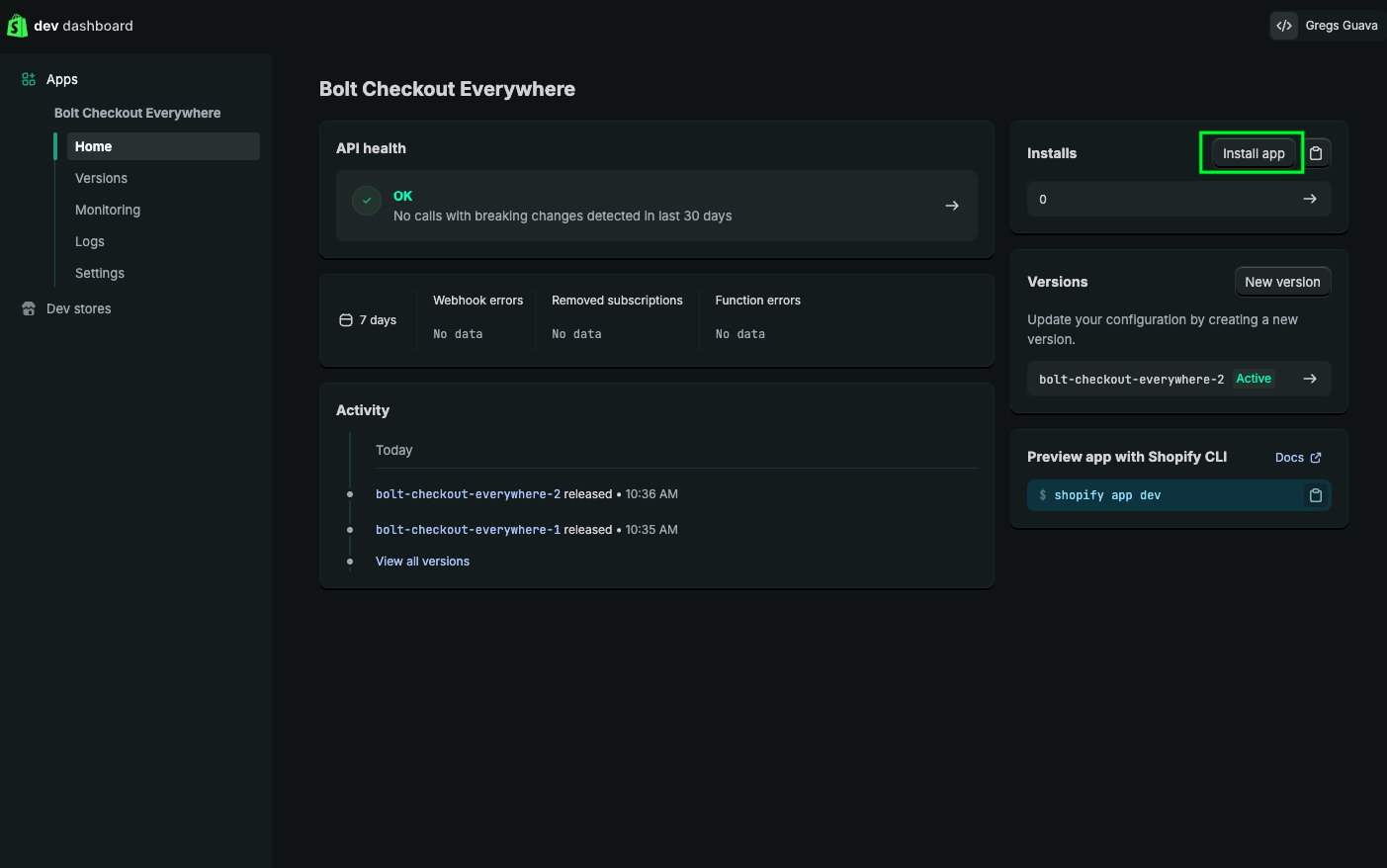
- Go to Home tab of your app and click on Install app.
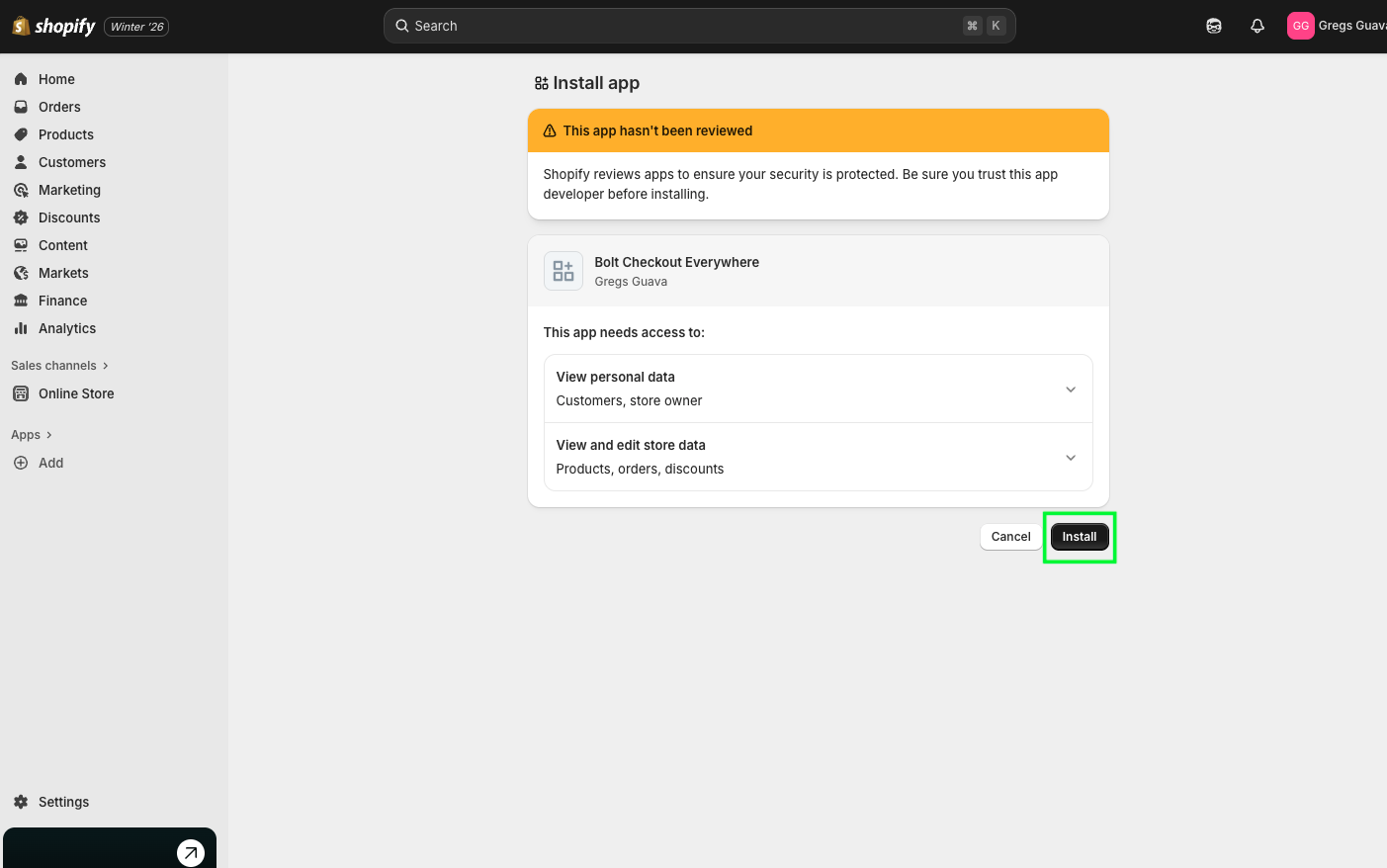
- You will be redirected back to the Shopify Store dashboard. Click on Install to add your app to your store.
- Go back to Shopify Dev Dashboard, open Settings tab of your app and reveal Secret. You should see the Client ID and Secret beginning with
shpss_*. Copy it and use in Step 2 of this guide. You can use the clipboard icon to easily copy credentials.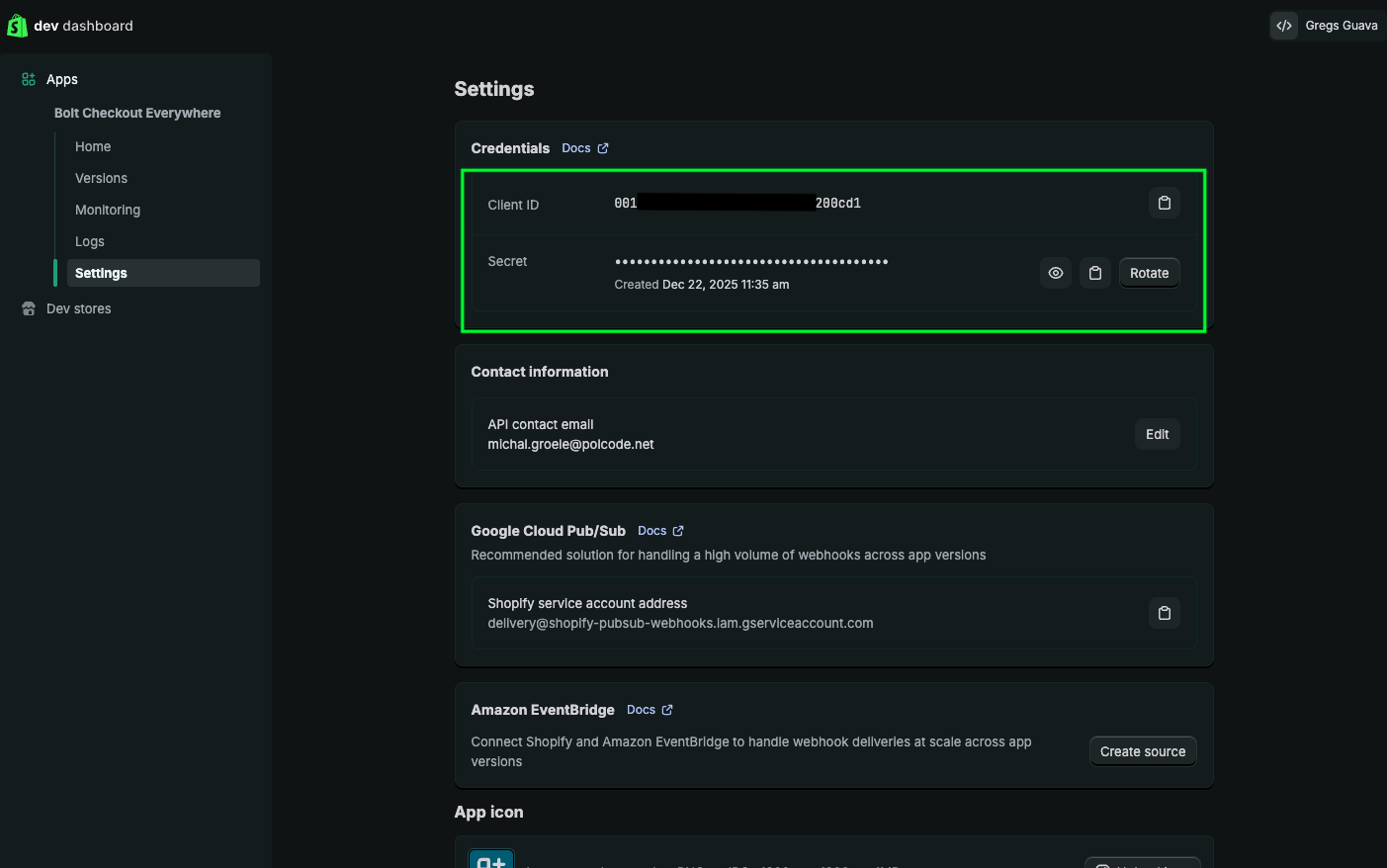
Optional steps for Shopify Partners
If you are a Shopify Partner, you may need to change your app distribution mode to be limited to your store only. Without it your access scopes may not be effective.
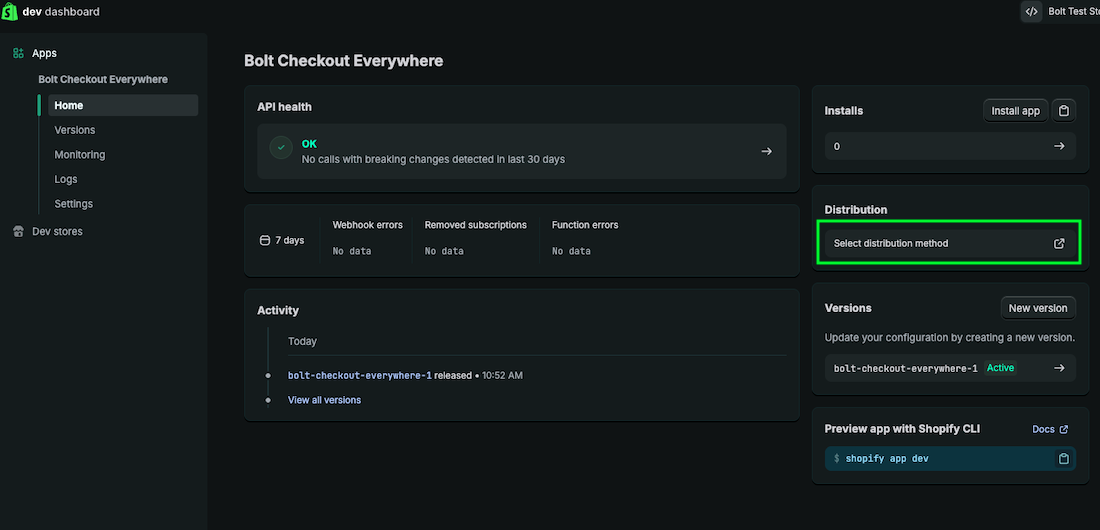
- Go to Home tab of your app and click on Select distribution method.
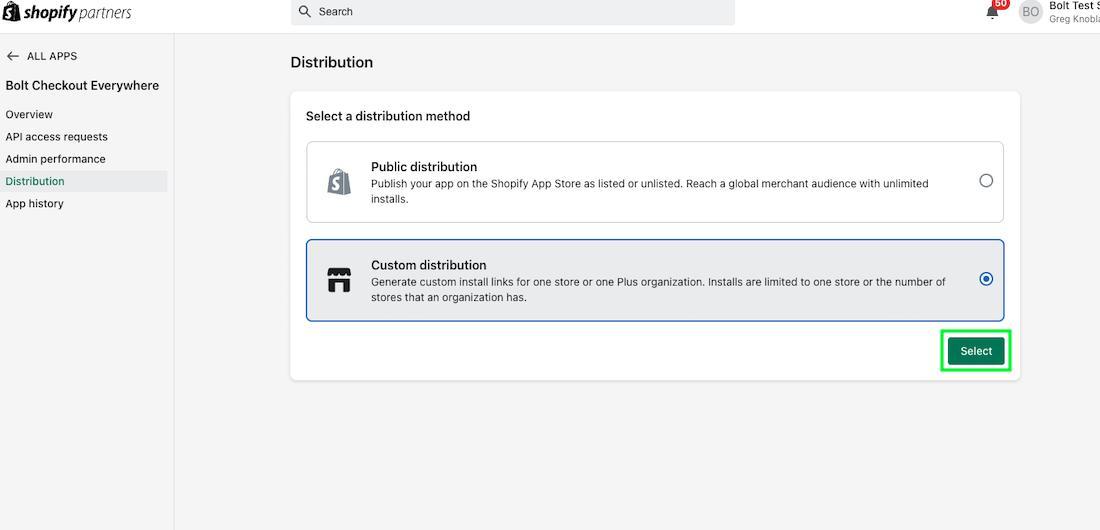
- Select Custom distribution and click on Select.
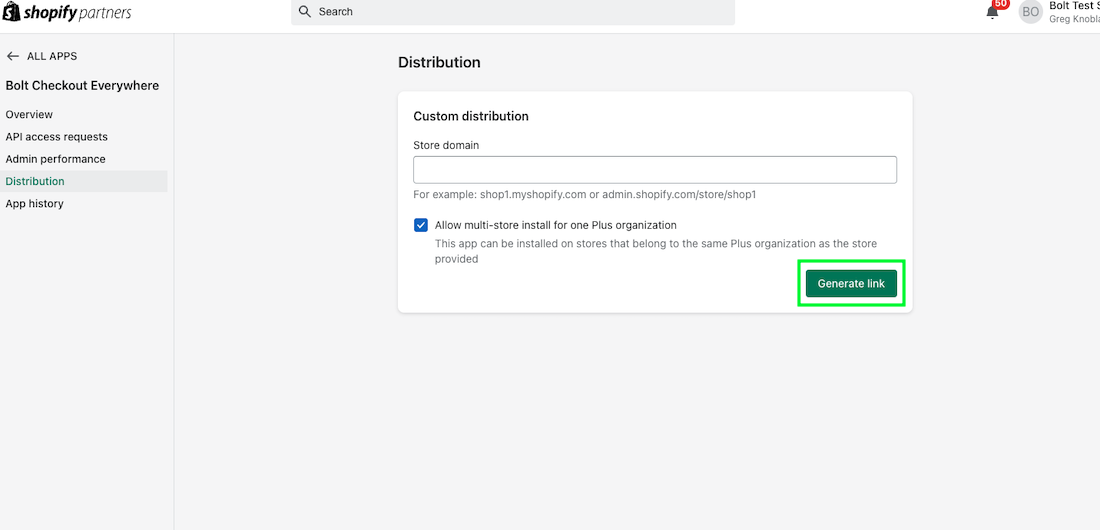
- Fill in your store domain (e.g. mystore.com) and click on Generate link. After it your access scopes should be effective.
Step 2: Fill Shopify Information in Bolt Merchant Dashboard
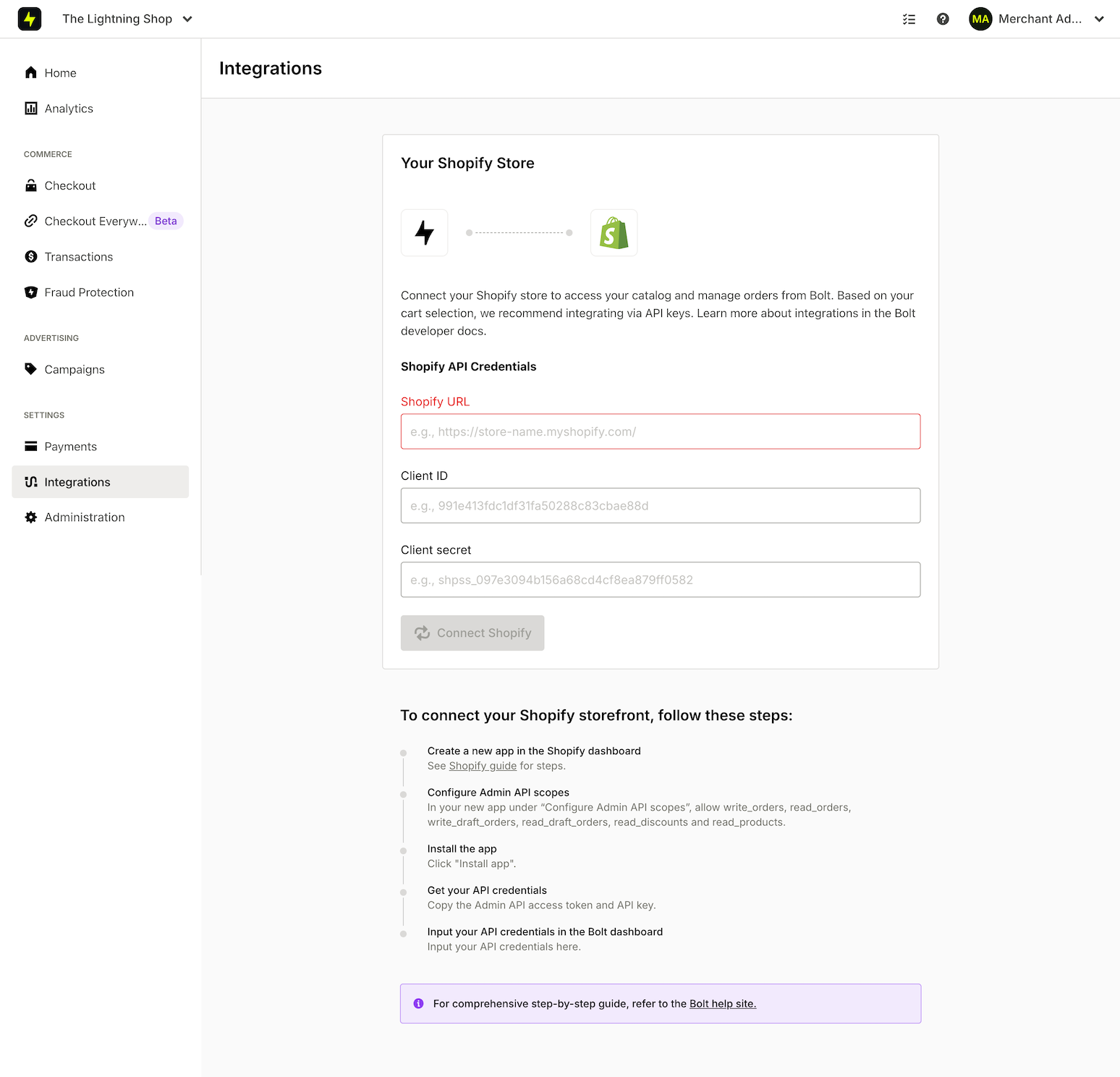
- Go to the Bolt Merchant Dashboard. Go to Integrations and select Shopify.
- Enter your store’s URL, the Client ID, and Client Secret for the app you created.
- Click Connect Shopify. You will see your product catalog count increase as the stores successfully connect.
Step 3: Set Up Payment Processor
If you already have Bolt Checkout, Accounts, or Ignite set up, you can skip this step! If you’re new, follow the instructions in our Payment Processor articles to set up your specific payment processor.
Step 4: Configure Your Checkout
If you already have Bolt Checkout, Accounts, or Ignite set up, you can skip this step! If you’re new, follow the instructions listed below to configure your checkout:
- Enter store and support information.
- Add store logo.
- Other checkout settings as found in your dashboard.
Step 5: Create your Checkout Links
Go to the dashboard and follow the instructions found in our Create Checkout Links article to start using Checkout Everywhere.