
Determine if a shopper is blocklisted
When a shopper is blocklisted, orders move to Permanently Rejected without email notifications to your team. Verify blocklist status through transaction history.- Log in to the Merchant Dashboard.
- Go to Transactions.
- Open the transaction you are investigating.
- Copy the shopper email address and close the detail view.
- Paste the email into the search bar.
- Open Status filters and enable Failed Authorization or Permanently Rejected.
- Find the most recent failed transaction in the shopper history.
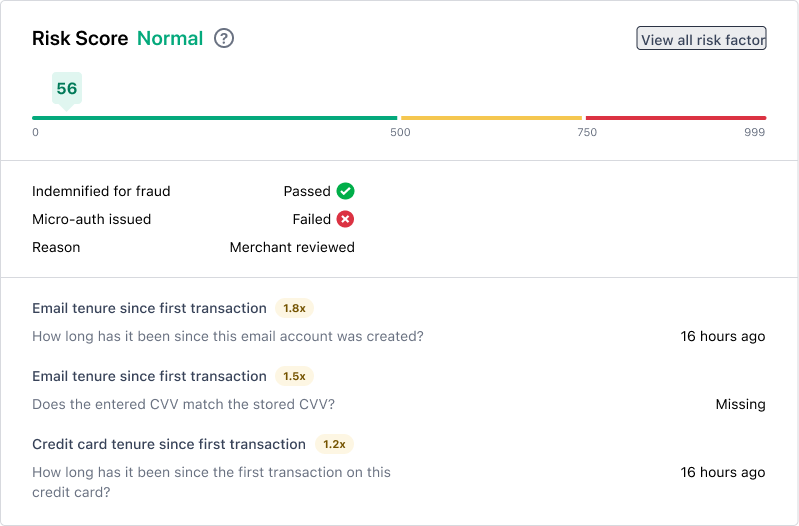
- Open that transaction and review the Reason in the Risk Score section.
Lost or stolen card example